
Team & Access Management
Invite Staff Members
To grant store access to a team member, navigate to Settings → Account. Under the Account and Permissions section, locate Staff Accounts and click Add Staff Account.
On the Add Staff Account page, enter the staff member's email address in the Email field, then click Send Invite. MerchFox.Shop will dispatch an invitation email to the specified address with instructions for the staff member to create their credentials and access the store.
ℹ️ By default, newly invited staff accounts are granted full permissions. If you wish to restrict access to specific areas of the store, uncheck the "This staff account will have full permissions" option before sending the invitation, then configure the appropriate permission set manually.
Account Overview
From the Settings → Account page, you can also review the following store-level information at a glance:
Member Since — The date your MerchFox.Shop account was created
Current Plan — Your active subscription tier (e.g., Free Trial, Basic Base Plan)
Account Owner — The primary account holder with full administrative access
Staff Accounts — A list of all active staff members and their permission levels
⚠️ The number of staff accounts available is determined by your current subscription plan. To increase your staff seat limit, navigate to Settings → Account and click Update Plan to upgrade your subscription.
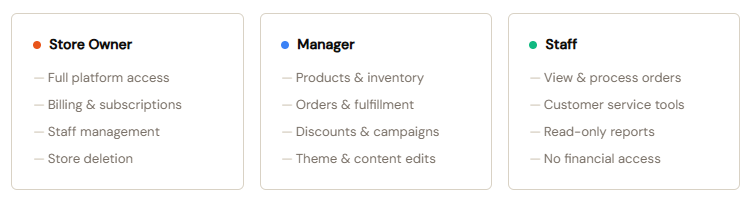
Roles & Permissions
MerchFoxShop provides three default permission tiers. Custom roles are available on Business and Enterprise plans.
Was this article helpful?
Let us know so we can improve our documentation.
Still need help? Contact our support team →