
TikTok Shop Integration
MerchFox.Shop supports native integration with TikTok Shop, enabling merchants to connect their TikTok Shop accounts, sync products, and manage orders directly from the MerchFox dashboard.
Step 1 — Enable the TikTok Shop App
From the main navigation, go to Apps → App Store. Locate the TikTok Shop application and toggle the Built-in App switch to the active (enabled) position. Once enabled, a TikTok Shop menu item will appear in the left-side navigation panel, with two sub-sections: Auto Listing and Shops.
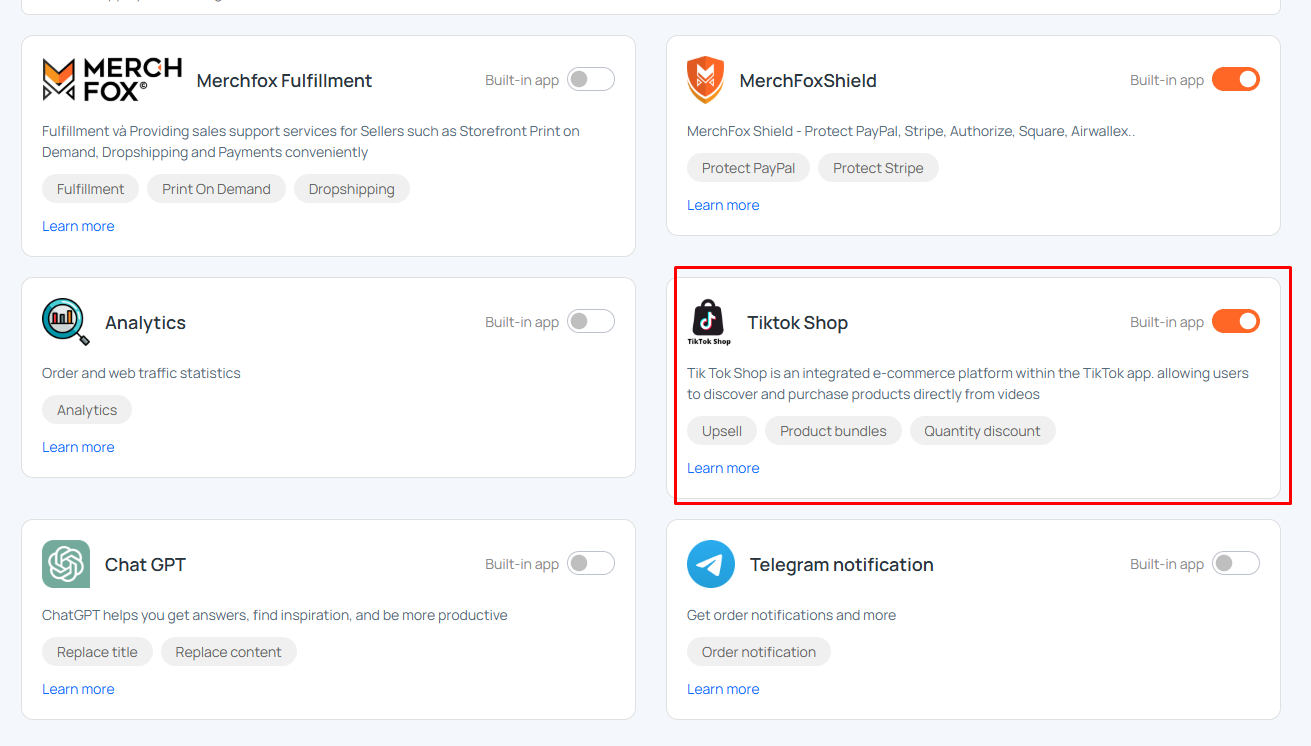
Step 2 — Connect Your TikTok Shop Account
Navigate to TikTok Shop → Shops and click + Add More Shop in the top-right corner. A dialog box titled Your Authorization Link will appear, presenting three connection options:
Link US — Connect a TikTok Shop account registered under the United States marketplace
Link UK — Connect a TikTok Shop account registered under the United Kingdom marketplace
Custom Link — Connect using your own TikTok Shop API credentials. This option is intended for merchants who have registered a dedicated TikTok Shop developer application and wish to use their own service ID rather than the shared MerchFox.Shop system integration
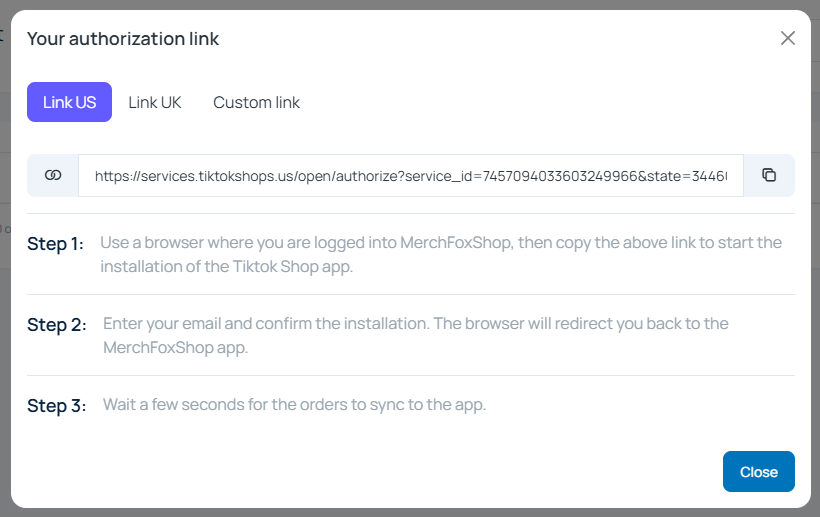
Select the appropriate link type, then follow the three-step authorization process as instructed in the dialog:
Step 1 — Using a browser where you are already logged into MerchFox.Shop, copy the provided authorization URL and open it in the same browser to initiate the TikTok Shop app installation
Step 2 — Enter your TikTok Shop credentials and confirm the installation. Upon confirmation, the browser will automatically redirect you back to the MerchFox.Shop dashboard
Step 3 — Wait a few seconds for your orders and shop data to complete the initial synchronization
Step 3 — Manage Connected Shops
Once a TikTok Shop account is successfully connected, it will appear in the Shop List table under TikTok Shop → Shops. Each connected shop entry displays the following columns:
Code — The unique system identifier assigned to the connected TikTok Shop account (e.g., USLC8TE8DS)
Name — The TikTok Shop account name as registered on the TikTok platform
Nickname — A custom internal label for the shop, editable via the Change link for easier identification across the dashboard
Actions — A set of management actions available for each connected shop
The following actions are available per shop:
Detail Shop — View the full profile and connection details of the linked TikTok Shop account
Delete — Disconnect and remove the TikTok Shop account from MerchFox.Shop
Proxy — Configure a proxy server for the shop connection, typically used to route traffic through a specific IP for compliance or account management purposes
Promotion — Access and manage active promotions and discount campaigns running on the connected TikTok Shop
Sync Product — Manually trigger a product synchronization to push your MerchFox product catalog to the connected TikTok Shop listing
Sync Order — Manually trigger an order synchronization to pull the latest TikTok Shop orders into your MerchFox.Shop order management system
Setting Nurture — Configure automated account nurturing behaviors for the connected shop. Click Disable to turn off nurture automation for that account
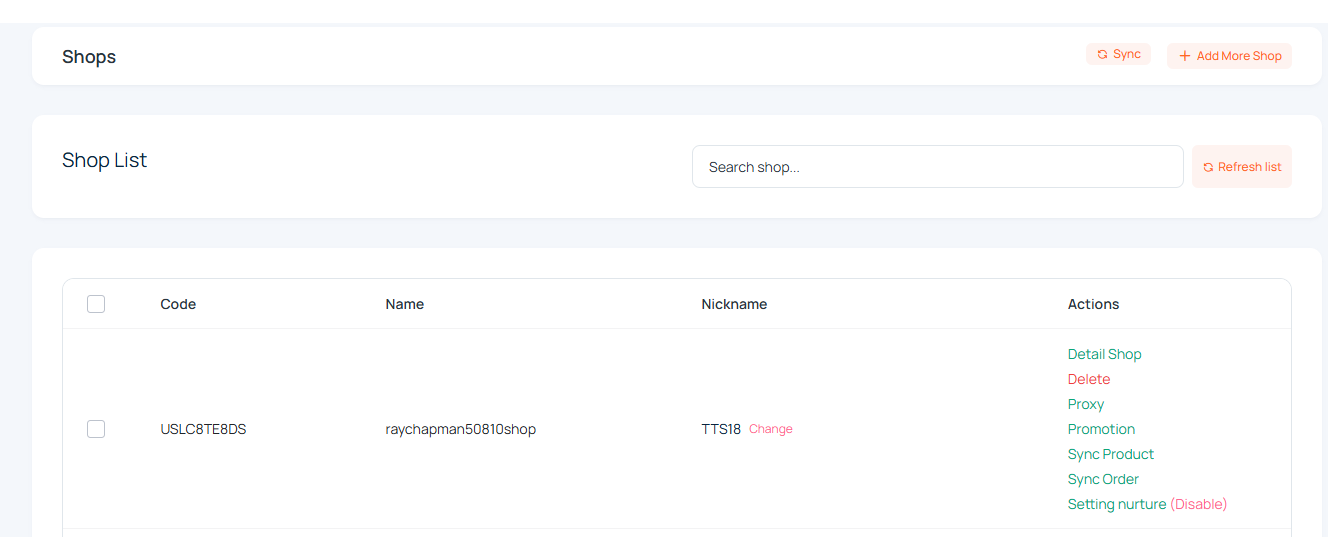
ℹ️ To refresh the shop list and reflect the latest connection status, click the Refresh List button on the Shops page. You may also use the Sync button in the top-right corner to trigger a full data synchronization across all connected TikTok Shop accounts.
Video:
Was this article helpful?
Let us know so we can improve our documentation.
Still need help? Contact our support team →